

Chrome extensions are just web pages with superpowers — but the superpowers come with rules. This is the beginner's map: the parts, the permissions, why your popup can't see the page you're looking at, and the caveats that bite everyone exactly once.
The mental model: several small worlds, not one program
If you know HyperText Markup Language (HTML), Cascading Style Sheets (CSS), and JavaScript (JS), you already know how to write an extension. What trips people up is how it runs. An extension is not one program: it is several small JavaScript programs, each locked in its own separate world, that can only talk to each other by sending messages.
There is the popup — the little panel that opens when you click the extension's icon in the toolbar. There is the service worker — an invisible background script that reacts to events. There is the content script — the only piece of your code that gets injected into the web page in the current tab. And there is an optional options page for settings. None of them share variables. None of them can call each other's functions. They live in different worlds and pass notes under the door.
Hold on to that picture — the boxes and the dotted lines. Every confusing thing about extensions ("why is my variable undefined?", "why can't the popup read the page?") is one of those boxes assuming it lives in another box. The rest of this post walks the picture top-to-bottom: first the file that declares all these parts, then each part in turn, then the permission system that decides what they may touch, and finally the caveats.
The manifest: your contract with the browser
Every extension is a folder, and at the root of that folder sits manifest.json — a
JavaScript Object Notation (JSON) file that tells Chrome what your extension is, which parts
it has, and what it wants permission to do. Nothing happens in an extension unless the
manifest declares it first. The current (and now mandatory) format is Manifest V3 (MV3);
everything in this post is MV3.
A realistic small manifest looks like this:
{
  "manifest_version": 3,
  "name": "My First Extension",
  "version": "1.0",
  "description": "Does one small useful thing.",

  "action": {
    "default_popup": "popup.html"
  },

  "background": {
    "service_worker": "background.js"
  },

  "content_scripts": [
    {
      "matches": ["https://example.com/*"],
      "js": ["content.js"]
    }
  ],

  "permissions": ["storage"],
  "host_permissions": ["https://example.com/*"]
}
Reading it top to bottom: action gives you the toolbar icon and names the popup's HTML
file; background names the service worker script; content_scripts says "inject
content.js into every page whose Uniform Resource Locator (URL) matches this pattern"; and
the two permission keys — which get their own section below — say what you're allowed to
touch. Delete a key and that part of your extension simply doesn't exist.
The four places your code runs
Now the boxes themselves. The manifest above named four different JavaScript files, and each
runs somewhere different, with a different slice of Chrome's extension application
programming interface (API) — the chrome.* object — available to it. Each context trades power for access:
the ones with full access to the chrome.* API cannot touch the web page, and the one that
can touch the web page can barely use the API.
| Context | What it really is | Can touch the page's DOM | Full chrome.* API | Lifetime |
|---|---|---|---|---|
| Popup | A tiny standalone HTML page | Only while open — closes on any click outside | ||
| Content script | Your JS injected into the tab | As long as the page lives | ||
| Service worker | A background event handler | Seconds — killed after ~30 s idle | ||
| Options page | A settings HTML page | Only while open |
The popup is just an HTML page — your own HTML, CSS, and JS, rendered in that small
floating panel. It can use the full extension API, but it is not inside the tab: document
in popup code means the popup's own tiny document, not the page you're looking at.
The content script is the opposite. It runs inside the tab and can read and rewrite the
page's Document Object Model (DOM) — hide elements, inject banners, scrape text. But it gets
only a sliver of the extension API: essentially chrome.runtime messaging and
chrome.storage. It cannot open tabs, cannot touch bookmarks, cannot do most chrome.*
things.
The service worker is the coordinator. It has no window and no DOM at all — it wakes up when an event fires (the extension was installed, a message arrived, an alarm rang), handles it, and is killed again. Chrome terminates it after roughly 30 seconds of inactivity, which has consequences we'll hit in the caveats.
The options page is just another standalone HTML page like the popup, opened from the
extension's entry in chrome://extensions. Same powers, same isolation — nothing new to
learn.
The dual system: the popup versus the page in the tab
This is the single biggest beginner confusion, so it gets its own section. You click your extension's icon, the popup opens in front of a web page, and it feels like the popup is "on" that page. It isn't. The popup and the page in the tab are two different documents in two different worlds — the popup can never reach into the tab directly, only by sending a message or injecting a script.
Here's the scene — simulated, like every browser screenshot in this post, so the details stay legible:
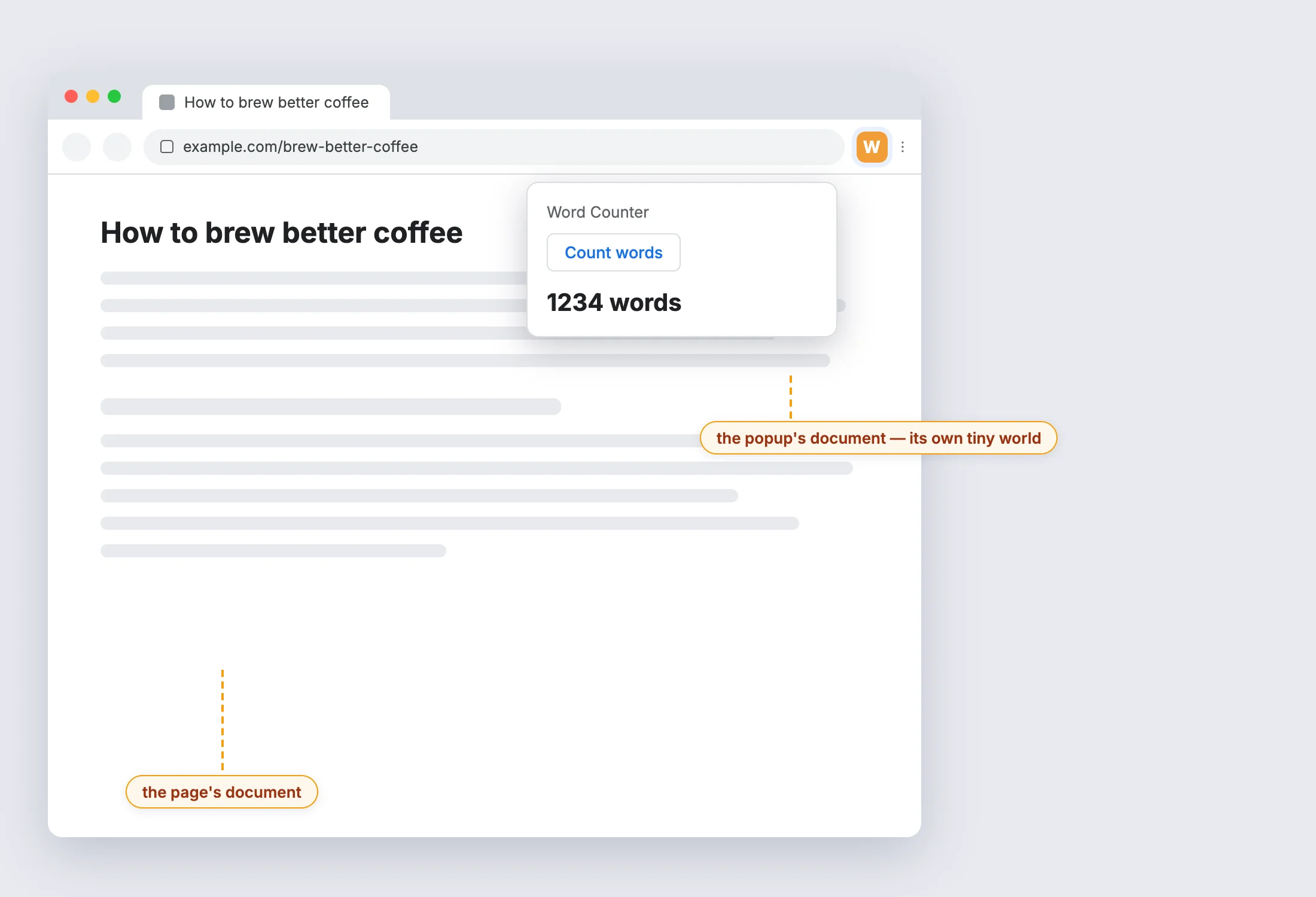
So when popup code runs document.querySelector('h1'), it searches the popup's own
few-lines-long document and finds nothing. To act on the page the user is looking at, the
popup must find the active tab and then either message a content script that's already there,
or inject one. Here's the message-passing version, end to end:
And there's a second layer of separation inside the tab. Your content script shares the DOM
with the page, but not the page's JavaScript. Chrome runs content scripts in an isolated
world: a
private JavaScript environment with its own variables and functions. The page can't see your
script (good — the page can't tamper with your extension), and you can't see the page's
(occasionally annoying — you can't just call window.jQuery or read the page app's state).
You both see the same DOM, and that's the whole shared surface.
Two walls, then: popup ↔ tab (crossed only by messages or injection), and page scripts ↔ content script (crossed only through the DOM). Once those two walls are on your mental map, the next question is obvious — what is your code allowed to do once it's in the right place? That's permissions.
Permissions: asking before touching
By default an extension can do almost nothing interesting. Every sensitive capability must be declared in the manifest, and Chrome shows the user a warning at install time for the scary ones. There are three keys to know:
permissions— capability permissions, from a fixed list of strings:"storage","tabs","scripting","bookmarks","notifications", and so on. Each unlocks achrome.*API (or part of one).host_permissions— URL match patterns ("https://example.com/*", or the everything-pattern"<all_urls>") that grant access to page content: injecting scripts, reading a tab's URL, intercepting its requests.optional_permissions/optional_host_permissions— the same things, but requested at runtime with a user prompt instead of at install time.
The one to remember is a special string in the first list:
activeTab.
activeTab is the polite default: it grants full access to the one tab the user is
looking at, only after they deliberately invoke your extension, and it triggers no install
warning at all. When the user clicks your icon (or uses your keyboard shortcut), Chrome
temporarily treats that one tab as if you had a host permission for it — you can inject
scripts and read its URL — and the grant evaporates when they navigate away.
Here's how the common choices compare, including the warning text the user sees:
| You declare | What it unlocks | Install-time warning |
|---|---|---|
"storage" | chrome.storage | |
"activeTab" | The current tab, after a click on your icon | |
"scripting" | chrome.scripting (still needs host access per site) | |
"tabs" | URL, title & favicon of all tabs in tabs.query | |
host_permissions: ["https://example.com/*"] | Inject into & read one site, automatically | |
host_permissions: ["<all_urls>"] | Inject into & read every site, automatically |
That last warning is what the user actually stares at before clicking:
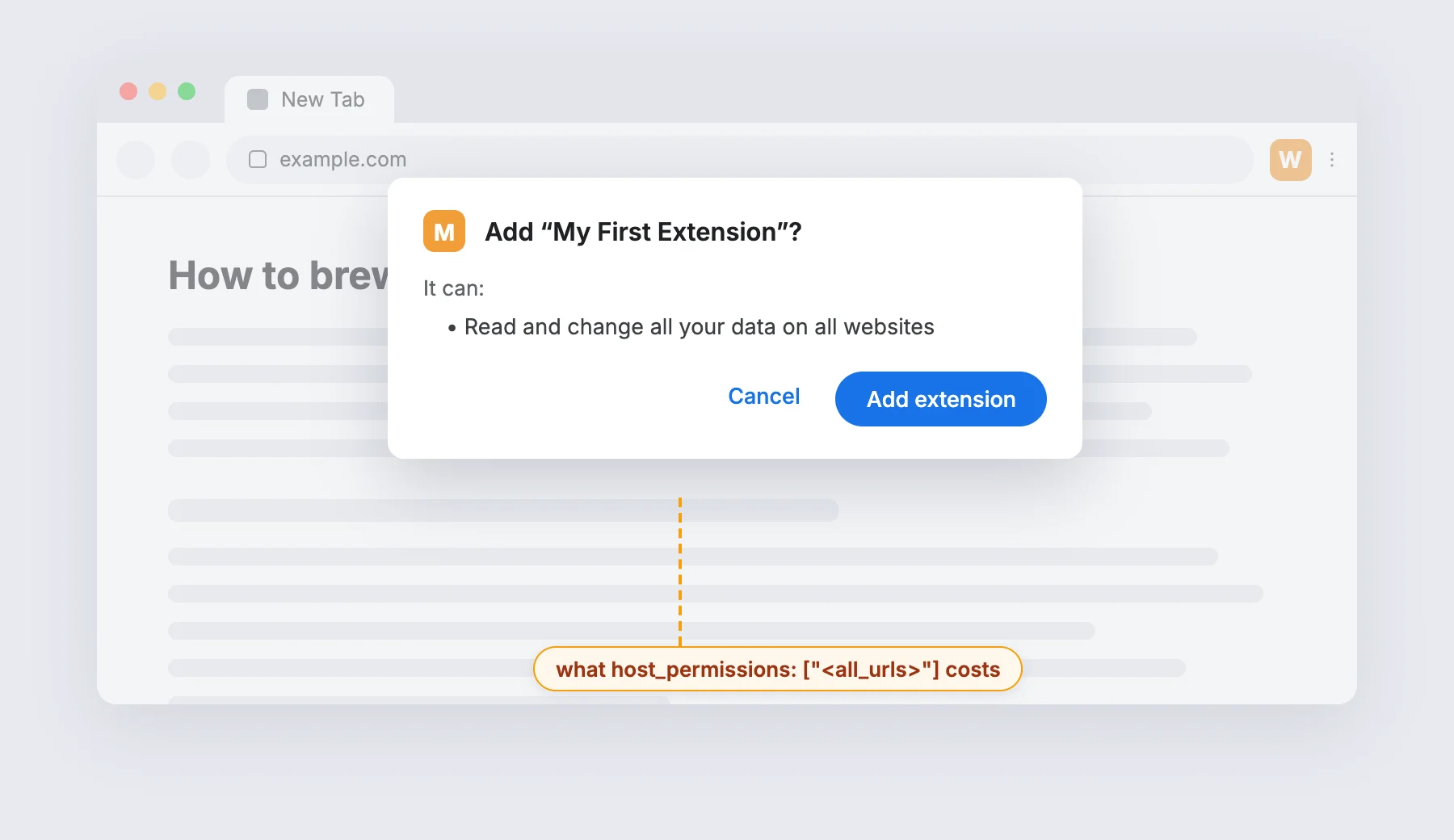
Two non-obvious rows there. First, plain chrome.tabs calls need no permission at all — the
"tabs" permission only adds the sensitive fields (URL, title, favicon) to what
tabs.query returns,
which is why it carries the browsing-history warning. Second, "scripting" alone injects
into nothing — it's the API permission, and it needs activeTab or a host permission to
supply the target.
The same pattern repeats for every other capability: declare the permission, unlock the API.
"cookies", for instance, plus a host permission, lets an extension read and write the
browser's cookie jar through chrome.cookies — what those cookies actually are and how
Chrome manages them is a story of its own, told in Inside the Cookie
Jar.
Choosing is mostly a one-question flowchart:
The chrome.* API in four bites
With the map and the permissions sorted, the API itself is the easy part. It lives on the
global chrome object, and modern Chrome returns promises,
so you can await everything. Four calls — tabs.query, scripting.executeScript,
storage, and sendMessage — cover ninety percent of what beginner extensions do.
Find the active tab — chrome.tabs.query
Almost every popup starts with this line: "which tab is the user looking at?"
const [tab] = await chrome.tabs.query({ active: true, currentWindow: true });
console.log(tab.id); // tab.url is only present with "tabs", "activeTab" or a host permission
Run code inside the page — chrome.scripting.executeScript
The injection route across the popup↔tab wall — the alternative to declaring a
content_scripts entry in the manifest. The function you pass is serialized and executed
inside the tab's isolated world, and its return value comes back to you:
const [{ result }] = await chrome.scripting.executeScript({
  target: { tabId: tab.id },
  func: () => document.querySelectorAll('img').length, // runs in the page, not here
});
console.log(`The page has ${result} images`);
Needs "scripting" plus "activeTab" (or a host permission) — see
chrome.scripting.
Remember things — chrome.storage
The popup dies when it closes and the service worker dies when idle, so
chrome.storage is
where state actually lives. Use sync for small settings (they follow the user's Google
account across machines), local for bigger data. Don't reach for localStorage: it isn't
shared across your extension's contexts, and the service worker can't use it at all.
await chrome.storage.sync.set({ theme: 'dark' });
const { theme } = await chrome.storage.sync.get('theme');
Pass notes between worlds — chrome.runtime.sendMessage / onMessage
The messaging
glue from the
sequence diagram earlier. One side sends, the other listens; chrome.tabs.sendMessage
targets a specific tab's content script, chrome.runtime.sendMessage reaches the extension's
own pages and service worker:
// popup.js — ask the content script in this tab
const reply = await chrome.tabs.sendMessage(tab.id, { type: 'COUNT_WORDS' });
console.log(reply.words);
// content.js — answer
chrome.runtime.onMessage.addListener((message, sender, sendResponse) => {
  if (message.type === 'COUNT_WORDS') {
    sendResponse({ words: document.body.innerText.trim().split(/\s+/).length });
  }
});
A complete extension in three small files
Time to assemble the bites into a working whole: a word counter for the current page, using
the polite activeTab + scripting combo — no content script file, no service worker, no
install warning.
manifest.json:
{
  "manifest_version": 3,
  "name": "Word Counter",
  "version": "1.0",
  "description": "Counts the words on the current page.",
  "action": { "default_popup": "popup.html" },
  "permissions": ["activeTab", "scripting"]
}
popup.html — note the script is a separate file; MV3's Content Security Policy (CSP)
forbids inline <script> tags:
<!doctype html>
<html>
  <body>
    <button id="count">Count words</button>
    <p id="result"></p>
    <script src="popup.js"></script>
  </body>
</html>
popup.js:
document.getElementById('count').addEventListener('click', async () => {
  const [tab] = await chrome.tabs.query({ active: true, currentWindow: true });
  const [{ result }] = await chrome.scripting.executeScript({
    target: { tabId: tab.id },
    func: () => document.body.innerText.trim().split(/\s+/).length,
  });
  document.getElementById('result').textContent = `${result} words`;
});
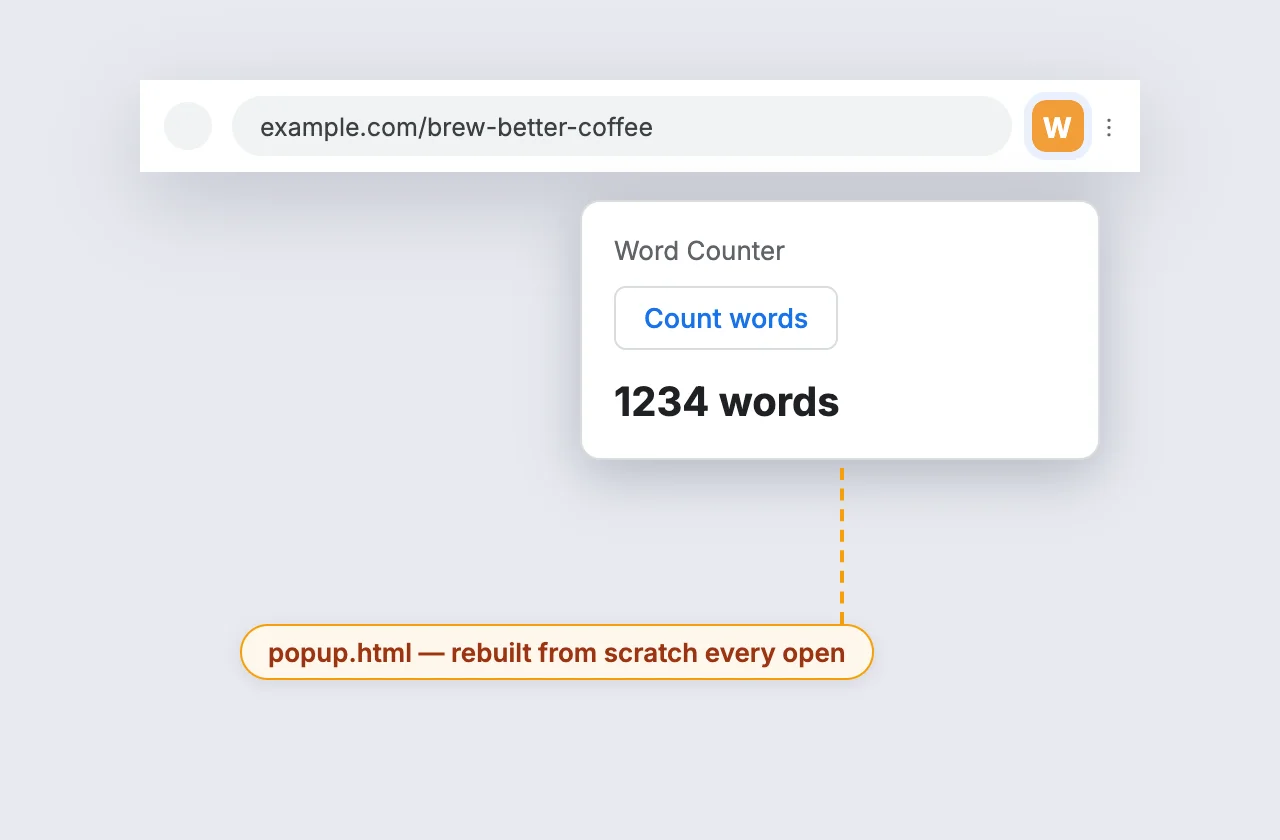
That's the entire extension. To run it:
- Put the three files in one folder.
- Open
chrome://extensionsand switch on Developer mode (top right). - Click Load unpacked and pick the folder.
- Open any article, click the new toolbar icon, click Count words.
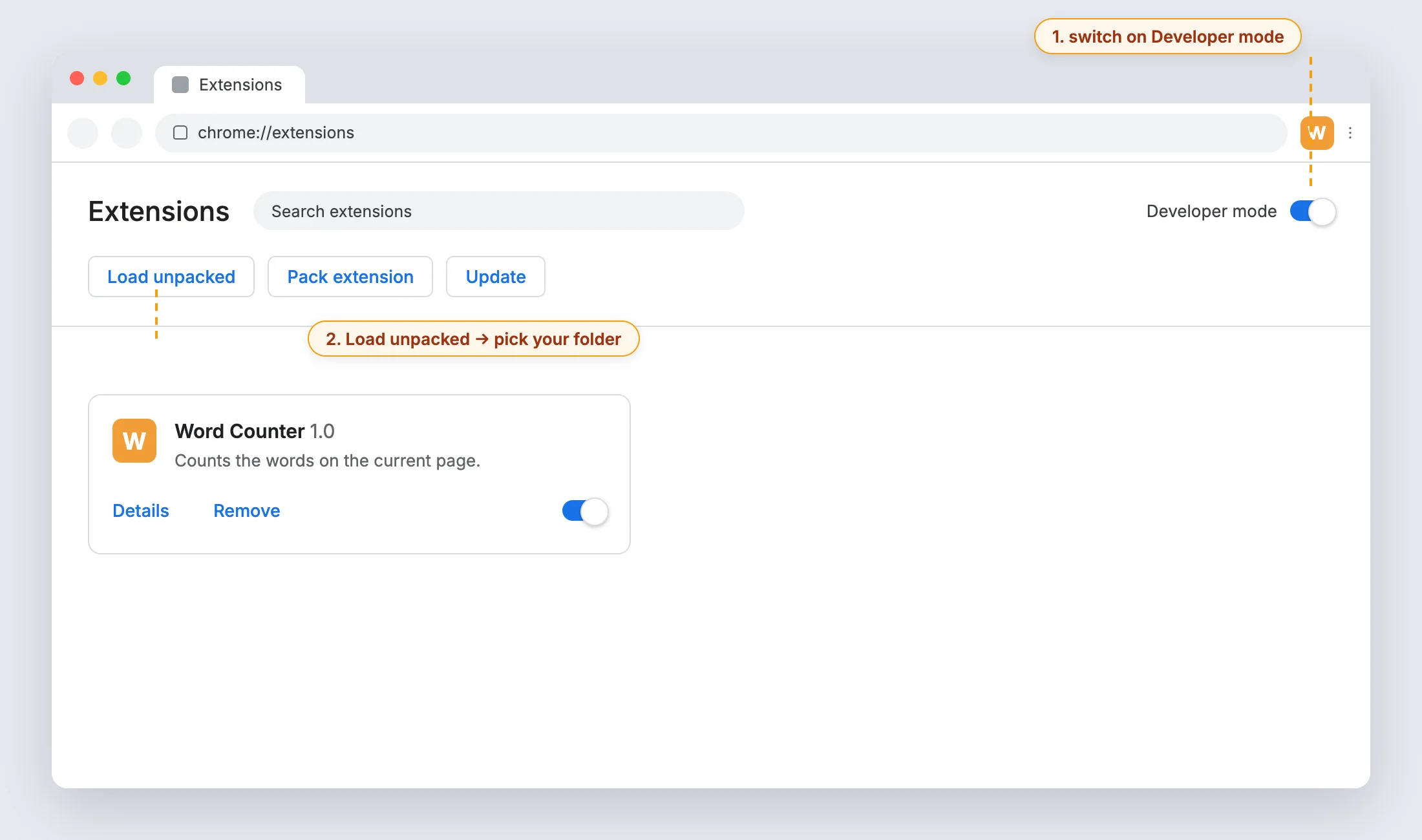
After edits, hit the reload icon on the extension's card (and reload the tab if you're testing content scripts). The official Get started tutorials continue from exactly this point.
The caveats nobody tells you about
Everything above is the happy path. These are the sharp edges — each one traces back to the worlds-and-walls model, and each one costs an evening of debugging the first time.
- The service worker is ephemeral. Chrome kills it after ~30 seconds
idle
and restarts it on the next event, so any global variable you set will silently be gone
later. Assume the service worker is already dead: keep no state in globals, and persist
anything you care about in
chrome.storage. Timers are the classic victim —setTimeoutdies with the worker; usechrome.alarmsinstead. - Popup state evaporates. The popup is destroyed the moment it loses focus — a click on
the page, an alt-tab — and reborn from scratch next open. It also cannot be opened
programmatically. Same medicine: state in
chrome.storage, popup as a dumb view of it. - The isolated world cuts both ways. Your content script cannot call the page's
JavaScript, read its framework state, or use its libraries — the DOM is the only shared
surface. If the page renders late (a single-page app), your script may also run before the
content exists; watch the DOM with
MutationObserverrather than assuming it's there. - Some pages are off-limits, period. Content scripts and
executeScriptdon't work onchrome://pages, the Chrome Web Store, or other extensions' pages — no permission unlocks them. If your extension "does nothing", check which page you're testing on: a fresh new-tab page is achrome://page. - MV3 forbids remotely hosted code. All JavaScript must ship inside the extension
package — no loading scripts from a content delivery network at runtime, and (per the CSP
you met above) no inline scripts or
eval. Fetching data from the network is fine; fetching code is not.
Wrap-up
The mental model is genuinely the whole trick. An extension is a folder with a manifest and a
handful of small JavaScript worlds: a popup that is its own page, a content script that lives
in the tab but behind glass, and a throwaway service worker in the background — held together
by messages, chrome.storage, and whatever the permissions you declared allow. Start with
activeTab and the three-file word counter, break it, and the error messages will finally
make sense — because you'll know which world they're coming from.
References
- Extension development overview — Chrome for Developers
- Get started with Chrome extensions — Chrome for Developers
- Content scripts (and isolated worlds) — Chrome for Developers
- Message passing — Chrome for Developers
- Declare permissions — Chrome for Developers
- Permissions list — Chrome for Developers
- Permission warning guidelines — Chrome for Developers
- The activeTab permission — Chrome for Developers
- The extension service worker lifecycle — Chrome for Developers
- chrome.tabs API — Chrome for Developers
- chrome.scripting API — Chrome for Developers
- chrome.storage API — Chrome for Developers