
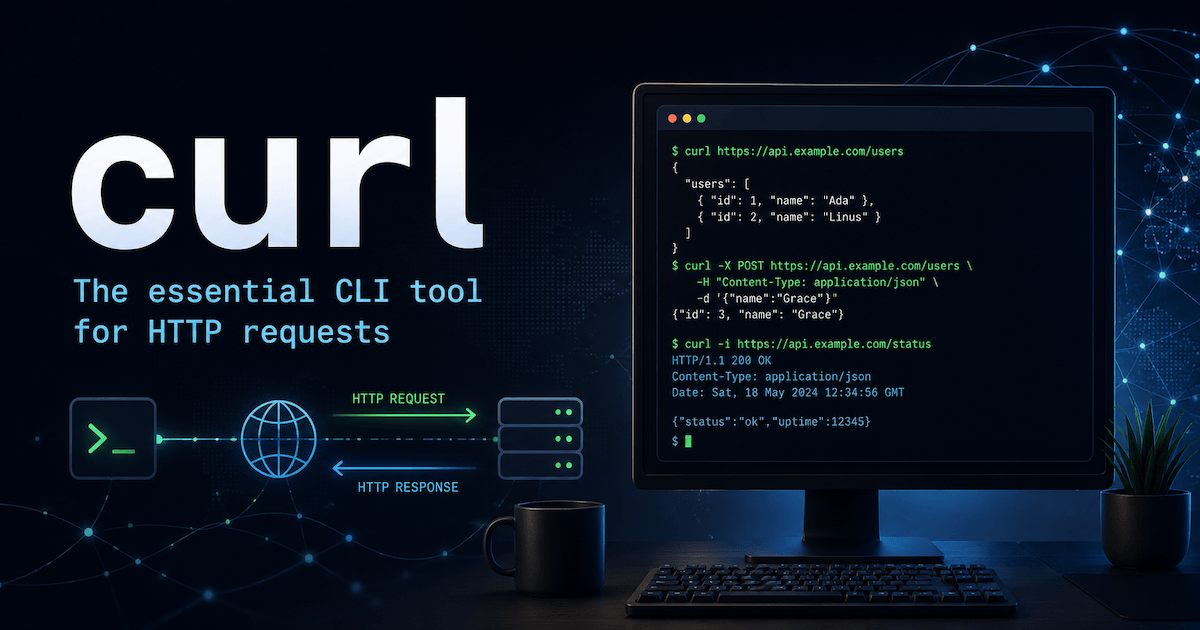
Most developers use curl as a quick way to "hit an endpoint". But curl is much more than that — a tiny HTTP client, a debugging tool, a poor man's Postman, a network probe, a CI health checker, a download manager, and often the fastest way to understand what's really happening between your machine and a server. Here are 25 curl recipes I actually reach for.
curl is not just a command — it is a way to see the web without the browser. When you
understand curl, you understand HTTP better: methods, headers, bodies, redirects,
cookies, auth, TLS, timing, and failure modes. And that makes you a better frontend,
backend, and fullstack developer. Learn it once and it pays back forever.
The mental model
At its core, curl does this:
curl [options] <url>
You give it a URL. It makes a request. You control the method, headers, body, auth, redirects, output, retries, timeouts, and debugging level.
Basic GET request
curl https://api.example.com/users
This sends a GET request and prints the response body.
Use it when you want the fastest possible check that an endpoint works.
Show response headers only
curl -I https://example.com # -I = --head
Useful for checking:
- status code
- cache headers
- redirects
- content type
- security headers
Example output:
HTTP/2 200
content-type: text/html
cache-control: max-age=3600
Show headers and body
curl -i https://api.example.com/users # -i = --include
-i includes the response headers before the body.
Use this when debugging APIs.
Follow redirects
curl -L https://example.com # -L = --location
By default, curl does not automatically follow redirects.
-L tells it to follow 301, 302, 307, and similar redirect responses.
Common use case:
curl -L https://github.com
Make a POST request with JSON
curl -X POST https://api.example.com/users \
  -H "Content-Type: application/json" \
  -d '{"name":"Pere","role":"developer"}'
This sends JSON in the request body.
The important parts:
| Option | Meaning |
|---|---|
-X POST (--request) | HTTP method |
-H (--header) | Request header |
-d (--data) | Request body |
In many cases, -d already implies POST, so this also works:
curl https://api.example.com/users \
  -H "Content-Type: application/json" \
  -d '{"name":"Pere"}'
Send an authorization token
curl https://api.example.com/me \
  -H "Authorization: Bearer $TOKEN"
Better than hardcoding the token:
TOKEN="your-token-here"

curl https://api.example.com/me \
  -H "Authorization: Bearer $TOKEN"
Avoid leaving real tokens in shell history, documentation, screenshots, or Slack messages.
Pretty-print JSON with jq
curl https://api.example.com/users | jq
Without jq, JSON responses can be unreadable.
Example:
curl https://api.example.com/users \
  -H "Authorization: Bearer $TOKEN" \
  | jq '.data[0]'
This is one of the best combinations:
curl + jq
curl fetches.
jq understands JSON.
Save response to a file
curl https://example.com/file.json -o file.json
Or keep the remote filename:
curl -O https://example.com/file.json
Difference:
| Option | Meaning |
|---|---|
-o file.json (--output) | You choose the output filename |
-O (--remote-name) | Uses the remote filename |
Download safely with fail mode
By default, curl treats an HTTP error like 404 or 500 as a "successful" transfer:
it exits with code 0 and happily writes the server's error page into your file. So a
download can "succeed" while actually saving an HTML error page renamed app.tar.gz — and
the next step in your script unpacks garbage.
"Fail mode" fixes this. --fail makes curl return a non-zero exit code on any HTTP
response >= 400, so your script can detect the failure instead of trusting a corrupt
file:
curl --fail --location --output app.tar.gz https://example.com/app.tar.gz
A better version — --fail-with-body still fails, but prints the server's error body so
you can see why (e.g. an "expired link" or "access denied" message) instead of failing
blind:
curl --fail-with-body \
  --location \
  --output app.tar.gz \
  https://example.com/app.tar.gz
Why this matters:
| Option | Why useful |
|---|---|
--fail | Fails on HTTP errors |
--fail-with-body | Fails but still shows the error body |
--location | Follows redirects |
--output | Saves to file |
This is especially useful in CI scripts.
Add timeouts
Never let scripts hang forever.
curl https://api.example.com/health \
  --connect-timeout 5 \
  --max-time 15
Meaning:
| Option | Meaning |
|---|---|
--connect-timeout 5 | Max time to establish connection |
--max-time 15 | Max total time for the whole operation |
This is critical for automation, health checks, CI jobs, and deployment scripts.
Retry unstable requests
curl https://api.example.com/health \
  --retry 3 \
  --retry-delay 2 \
  --connect-timeout 5 \
  --max-time 15
Use this for flaky networks or temporary server errors.
For CI, I like this pattern:
curl --fail-with-body \
  --location \
  --retry 3 \
  --retry-delay 2 \
  --connect-timeout 5 \
  --max-time 20 \
  https://api.example.com/health
This is much better than a naked curl.
Get only the status code
curl -s -o /dev/null -w "%{http_code}\n" https://example.com # -s=--silent -o=--output -w=--write-out
Output:
200
Breakdown:
| Option | Meaning |
|---|---|
-s | Silent mode |
-o /dev/null | Ignore response body |
-w "%{http_code}\n" | Print status code |
Useful in scripts:
STATUS=$(curl -s -o /dev/null -w "%{http_code}" https://example.com)

if [ "$STATUS" = "200" ]; then
  echo "OK"
else
  echo "Failed with status $STATUS"
fi
Debug the full request
curl -v https://api.example.com/users # -v = --verbose
-v shows useful details:
- DNS resolution
- TLS handshake
- request headers
- response headers
- connection reuse
Use this when something "should work" but does not.
For even more detail:
curl --trace-ascii debug.txt https://api.example.com/users
Send form data
curl -X POST https://example.com/login \
  -d "username=pere" \
  -d "password=secret"
This sends form-encoded data.
Equivalent content type:
application/x-www-form-urlencoded
Useful for old-school forms and some OAuth flows.
Upload a file
curl -X POST https://api.example.com/upload \
  -F "file=@./avatar.png"   # -F = --form
-F sends multipart/form-data.
You can also add extra fields:
curl -X POST https://api.example.com/upload \
  -F "file=@./avatar.png" \
  -F "userId=123"
Use basic auth
curl https://api.example.com/private \
  -u username:password   # -u = --user
Better:
curl https://api.example.com/private \
  -u "$USERNAME:$PASSWORD"
Again: do not hardcode secrets in shared scripts.
Test a local API
curl http://localhost:3000/api/health
For JSON APIs:
curl http://localhost:3000/api/users \
  -H "Accept: application/json"
For local POST:
curl http://localhost:3000/api/users \
  -H "Content-Type: application/json" \
  -d '{"name":"Pere"}'
This is often faster than opening Postman.
Test cookies
Save cookies:
curl -c cookies.txt https://example.com/login # -c = --cookie-jar
Send cookies:
curl -b cookies.txt https://example.com/dashboard # -b = --cookie
Use this when debugging login flows, sessions, and CSRF behavior.
Spoof a user agent
curl https://example.com \
  -A "Mozilla/5.0"   # -A = --user-agent
Some servers behave differently depending on the User-Agent.
You can also inspect what your frontend app might receive from a server that treats browsers differently.
Check compression
curl https://example.com \
  -H "Accept-Encoding: gzip, br" \
  -I
Look for headers like:
content-encoding: br
content-encoding: gzip
Useful when checking CDN or server compression.
Measure request timings
curl -o /dev/null -s -w \
"time_namelookup:  %{time_namelookup}s\n\
time_connect:     %{time_connect}s\n\
time_appconnect:  %{time_appconnect}s\n\
time_starttransfer:%{time_starttransfer}s\n\
time_total:       %{time_total}s\n" \
https://example.com
This helps separate:
| Metric | Meaning |
|---|---|
time_namelookup | DNS time |
time_connect | TCP connection time |
time_appconnect | TLS handshake time |
time_starttransfer | Time to first byte |
time_total | Total request time |
This is a great lightweight performance debugging trick.
Use a proxy
curl https://example.com \
  -x http://localhost:8080   # -x = --proxy
Useful with tools like:
- Charles Proxy
- mitmproxy
- Burp Suite
- corporate proxies
This is useful when inspecting traffic.
Ignore TLS errors temporarily
curl -k https://localhost:8443 # -k = --insecure
-k allows insecure TLS connections.
Use it only for local development or controlled debugging.
Do not use it in production scripts.
Force HTTP version
Use HTTP/1.1:
curl --http1.1 https://example.com
Use HTTP/2:
curl --http2 https://example.com
This is useful when debugging proxies, CDNs, load balancers, or backend servers with different protocol support.
Convert browser requests to curl
In Chrome or Edge DevTools:
- Open Network tab
- Right-click request
- Copy
- Copy as cURL
This is one of the most useful frontend debugging workflows.
You can take a real browser request and replay it in the terminal.
Then remove noise:
- unnecessary cookies
- tracking headers
- browser-only headers
- huge auth/session values
My default curl template
For APIs:
curl --fail-with-body \
  --location \
  --retry 3 \
  --retry-delay 2 \
  --connect-timeout 5 \
  --max-time 20 \
  -H "Accept: application/json" \
  "$URL"
For JSON POST:
curl --fail-with-body \
  --location \
  --connect-timeout 5 \
  --max-time 20 \
  -H "Accept: application/json" \
  -H "Content-Type: application/json" \
  -d '{"key":"value"}' \
  "$URL"
For status checks:
curl -s -o /dev/null -w "%{http_code}\n" "$URL"
For debugging:
curl -v "$URL"
Common mistakes
| Mistake | Better |
|---|---|
Using naked curl in scripts | Add --fail-with-body, timeouts, and retries |
| Hardcoding tokens | Use environment variables |
| Ignoring redirects | Add --location |
| Debugging blind | Use -i, -v, or --trace-ascii |
| Letting scripts hang | Add --connect-timeout and --max-time |
Using -k casually | Only use it for local debugging |
References
- curl man page — the complete reference for every
curloption - curl documentation — official docs, tutorials, and guides