
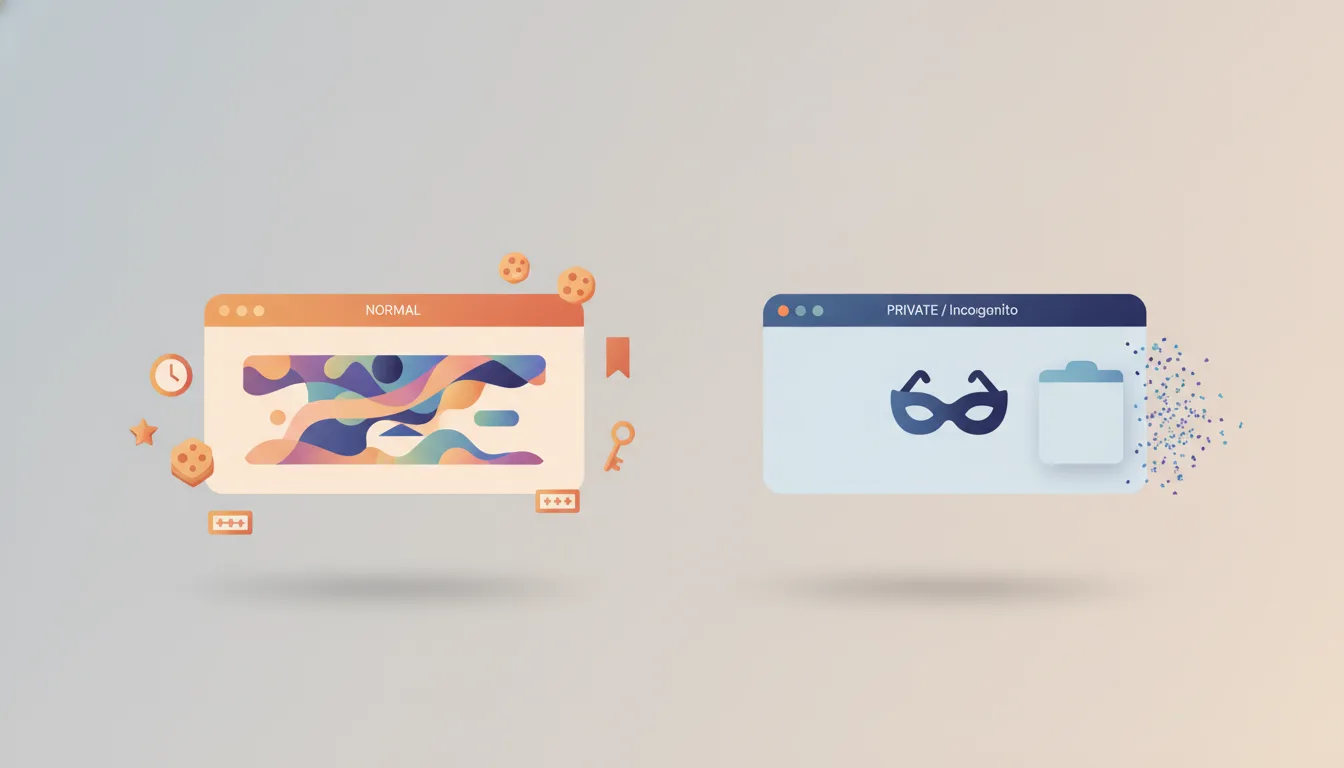
Every browser ships with a "private" or "incognito" mode, and most people have a fuzzy sense that it's "the one that doesn't save history." That's true, but it undersells what's happening and oversells the privacy. Here's what actually changes when you open a private tab, and — just as important — what doesn't.
The one-sentence version
A private tab runs your browsing in a temporary, isolated storage container that gets wiped when you close it. A normal tab writes to your persistent, shared profile that survives restarts. That's the whole difference. Everything else follows from it.
What a normal tab does
When you browse in a normal tab, the browser reads from and writes to your main profile on disk. Concretely, that means:
- Browsing history is recorded, so pages show up in your history and in address-bar autocomplete.
- Cookies are stored and sent back on future visits, which is why you stay logged in — the full mechanics of how the browser scopes and attaches them are a topic of their own.
- Web storage —
localStorage,sessionStorage,IndexedDB— persists per origin. - HyperText Transfer Protocol (HTTP) cache keeps copies of assets so repeat visits are faster.
- Autofill, saved passwords, and permissions (camera, location, notifications) are remembered.
- Service workers register and can keep running in the background.
What a private tab does differently
A private session spins up a fresh, ephemeral storage partition that starts empty and is discarded at the end. Practically:
- History is not written to your profile.
- Cookies and web storage live only in memory for the life of the session, then vanish. Nothing is committed to your persistent profile.
- You start logged out of everything, because there are no cookies to send.
- The session doesn't see your normal cookies either — it's isolated in both directions.
- Downloaded files and bookmarks you create are kept (those are explicit user actions), but the record of where you got them isn't.
- Extensions are often disabled by default in private mode unless you opt each one in.
An important and frequently missed detail: the isolation is per session, not per tab. Open three incognito tabs in the same window and they generally share cookies and storage with each other — so you can be logged in across those tabs. Close the last private window and the whole partition is torn down at once.
The part people get wrong
Private mode controls what your own device stores locally. It does essentially nothing about who can see your traffic on the network. In a private tab, all of the following can still identify or track you:
- Your Internet Service Provider (ISP) and network administrator (think office or school Wi-Fi) still see the domains you visit.
- The websites themselves still see your Internet Protocol (IP) address and can fingerprint your browser.
- Your employer can still monitor a managed device.
- Domain Name System (DNS) resolvers still log lookups.
Incognito is a local-privacy feature — good for keeping activity off a shared computer — not an anonymity tool. If you need to hide traffic from the network, that's a job for a virtual private network (VPN) or Tor, and even those come with their own caveats.
Why this matters if you build for the web
For frontend work, private mode is one of the most useful debugging tools you already have, precisely because of the clean-slate storage partition:- Testing the logged-out / first-visit experience. No cached auth cookies, no
localStorageflags from a previous run — you see exactly what a brand-new user sees. - Bypassing a stale HTTP cache without nuking your main profile's cache or fiddling with DevTools settings. Great for confirming whether a bug is a caching artifact.
- Multiple accounts at once. Log into one account normally and another in a private window, since the two sessions don't share cookies.
- Service worker gotchas. A registered service worker in your normal profile can serve stale assets and mask a deploy. A private window starts with no registrations, which quickly tells you whether the service worker is the culprit.
- Reproducing "works on my machine" storage bugs. If a feature depends on
localStorageorIndexedDBstate that accumulated over time, private mode strips it away so you can test the empty-state path.
A couple of things to keep in mind while testing: some browsers partition or limit storage more aggressively in private mode (for example, capping or isolating IndexedDB), so storage-heavy features can behave differently than in a normal profile — occasionally that difference is itself the thing you need to test for. And because the partition is destroyed on close, don't rely on private windows to persist anything between test runs.
Quick reference
| Normal tab | Private tab | |
|---|---|---|
| History saved | Yes | No |
| Cookies persist after close | Yes | No (memory only) |
| Web storage / IndexedDB persists | Yes | No, cleared on close |
| Starts logged in | Yes (if you were) | No |
| Shared with other tabs | All tabs & windows | Only tabs in the same private session |
| Extensions | Enabled | Often off by default |
| Hides activity from ISP / sites | No | No |
| Downloads & bookmarks kept | Yes | Yes |
Bottom line
A private tab isn't a different internet — it's the same browser writing to a disposable, isolated container instead of your real profile. That makes it genuinely handy for keeping activity off a shared machine and, if you build for the web, for testing clean-slate behavior. Just don't mistake "nothing saved locally" for "nobody can see me." Those are two very different promises, and private mode only makes the first one.