
The real goal is simpler: make the terminal fast, readable, predictable and comfortable enough that it gets out of your way.
The decision
For a modern developer setup, I would use this stack:
| Layer | Choice |
|---|---|
| Terminal emulator | WezTerm |
| Shell | zsh |
| Prompt | Starship |
| Plugin manager | Antidote |
| Plugins | zsh-autosuggestions, zsh-syntax-highlighting, fzf, zoxide |
Others: mise, git-aliases, lazygit, fd, ripgrep, ...
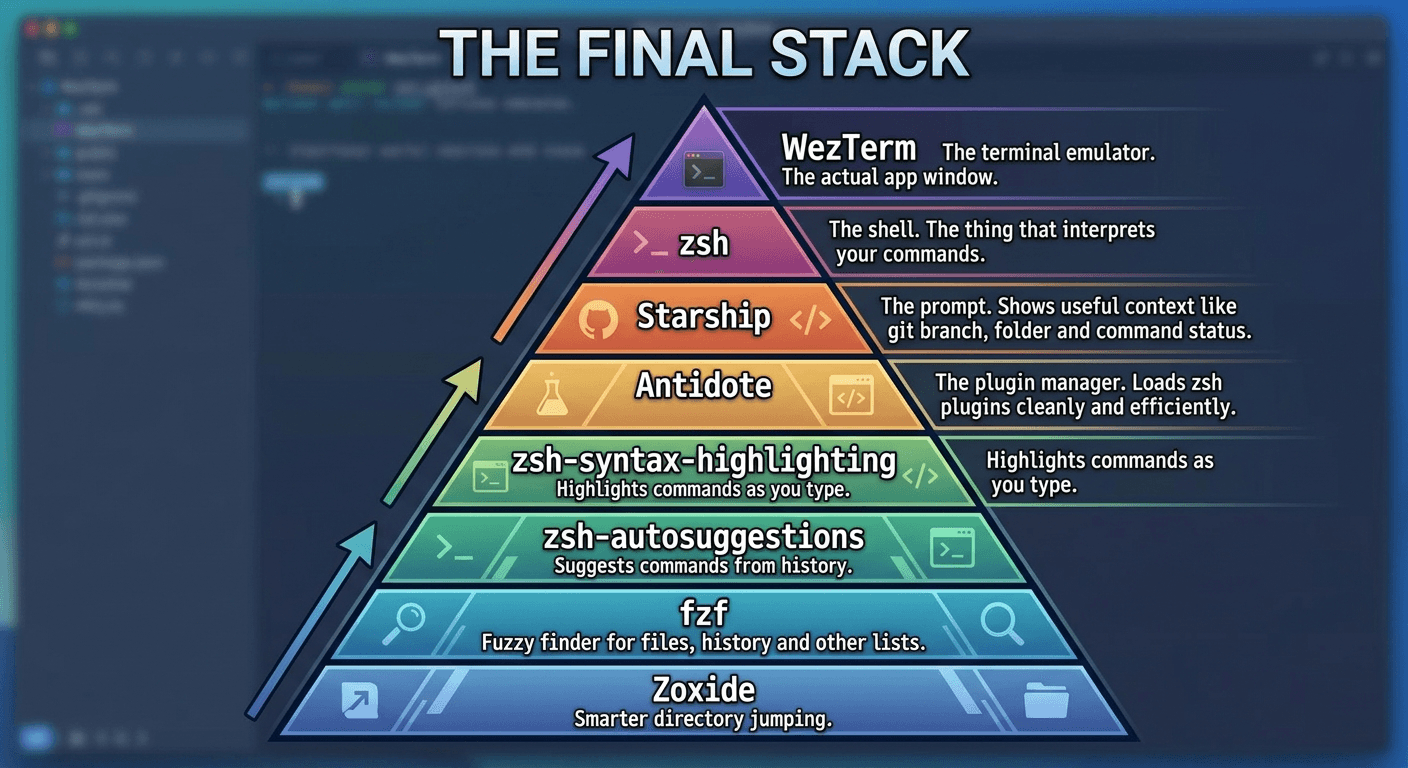
How the pieces fit together:
This gives you a good balance between power and simplicity. It is not the most minimal setup possible, but it is also not one of those giant shell frameworks where half of your terminal startup time is spent loading magic you do not understand.
What is a terminal emulator?
The terminal emulator is the actual app window where your terminal runs.
Examples:
Terminal.app
iTerm2
WezTerm
Alacritty
Ghostty
Kitty
It handles things like tabs, fonts, colors, keyboard shortcuts, GPU rendering, copy/paste, scrollback and how the shell is displayed.
The terminal emulator is not the shell. This is an important distinction.
The terminal emulator is the container. The shell is the program running inside it.
I would choose WezTerm because it is fast, modern, configurable, cross-platform and scriptable with Lua. It is powerful without feeling like a huge product. It also works well if you move between macOS and Linux.
What is a shell?
The shell is the command interpreter.
When you type:
cd ~/projects
pnpm dev
git status
the shell is the thing reading those commands and executing them.
Common shells are:
bash
zsh
fish
nushell
I would use zsh.
Not because it is perfect, but because it is the pragmatic choice on macOS. It is the default shell, it has a huge ecosystem, and it supports good plugins and completion systems.
Fish is nicer out of the box, but zsh is more standard. Bash is everywhere, but less pleasant interactively. Nushell is interesting, but still feels like a stronger opinion than most developers need for their daily shell.
| Shell | Take |
|---|---|
| zsh | Pragmatic default on macOS; huge ecosystem, good plugins and completions |
| fish | Nicer out of the box, but less standard |
| bash | Everywhere, but less pleasant interactively |
| nushell | Interesting, but a stronger opinion than most need daily |
So: zsh wins by being boring enough and powerful enough.
What is a prompt?
The prompt is the bit of information shown before you type a command.
A basic prompt may look like this:
$
A useful prompt may show things like:
current folder
git branch
git status
node version
package version
command duration
exit code
The prompt matters because it gives you context. You should know where you are, what branch you are on, and whether the last command failed without having to run extra commands all the time.
I would use Starship.
preset: "nerd-font-symbols"
It is fast, works across shells, has a clean config file, and gives you useful defaults without forcing a full shell framework on you.
The good thing about Starship is that it is focused. It does one job: render a good prompt.
What is a plugin manager?
A plugin manager loads shell plugins.
Without a plugin manager, your .zshrc can slowly turn into a graveyard of copied snippets from GitHub READMEs.
A plugin manager only tames the plugin part, though — the aliases, exports, functions and PATH fixes you hand-write still pile up. For keeping that half tidy — splitting .zshrc into small, single-purpose modules and understanding which startup file (.zshenv, .zprofile, .zshrc) loads when — see Stop Turning .zshrc Into a Junk Drawer.
A plugin manager gives you a cleaner way to say:
load this plugin
load that plugin
keep them organized
For zsh, common options are:
Oh My Zsh
zinit
antidote
antigen
zplug
I would use Antidote.
Oh My Zsh is friendly, but it is also a big framework. It is useful when starting out, but it can become a bit heavy and magical.
Antidote is smaller and more direct. You list your plugins in a .zsh_plugins.txt file, and Antidote loads them efficiently.
| Plugin manager | Take |
|---|---|
| Oh My Zsh | Friendly and batteries-included, but a big, sometimes magical framework |
| Antidote | Small and direct — list plugins in .zsh_plugins.txt, loads them efficiently |
That is the kind of abstraction I like: enough structure to keep things clean, not so much that the tool becomes the environment.
Recommended plugins
zsh-autosuggestions
This shows command suggestions based on your previous history.
Example:
pnpm --filter @my-app dev
After you have typed that once, the shell can suggest it next time.
It is a small feature, but it saves a surprising amount of typing.
zsh-syntax-highlighting
This highlights commands as you type them.
Valid commands can appear differently from invalid commands. Strings, paths and options become easier to read.
It is not essential, but once you use it, going back feels worse.
fzf
fzf is a fuzzy finder.
It lets you search interactively through files, command history, branches, processes and more.
Instead of remembering the exact thing, you type part of it and select it.
This is one of those tools that quietly becomes part of your muscle memory.
zoxide
zoxide is a smarter cd.
Instead of typing full paths all the time:
cd ~/projects/company/frontend/packages/admin
you can usually type something like:
z admin
It learns the directories you use most and lets you jump to them quickly.
Very practical. Very low ceremony.
Why not just install Oh My Zsh?
You can. It is fine.
But I would not choose it as the default recommendation for a developer who wants a clean, controlled setup.
Oh My Zsh is convenient, but it encourages a framework-style shell. You install it, enable themes and plugins, and things work. But you may not fully know what is being loaded, why startup is slower, or where behavior comes from.
For a developer setup, I prefer something more explicit:
zsh as the shell
Starship for the prompt
Antidote for plugins
small plugins with clear value
That gives you control without having to build everything manually.
The final stack
| Tool | Role |
|---|---|
| WezTerm | The terminal emulator — the actual app window |
| zsh | The shell — interprets your commands |
| Starship | The prompt — shows git branch, folder and command status |
| Antidote | The plugin manager — loads zsh plugins cleanly and efficiently |
| zsh-autosuggestions | Suggests commands from history |
| zsh-syntax-highlighting | Highlights commands as you type |
| fzf | Fuzzy finder for files, history and other lists |
| zoxide | Smarter directory jumping |
Final opinion
The best terminal setup is not the one with the most features. It is the one you understand, can reproduce, and can debug when something breaks.
This stack is a good default because each tool has a clear responsibility.
WezTerm runs the terminal. zsh runs the commands. Starship renders the prompt. Antidote manages plugins. The plugins add small, specific improvements.
That separation is what makes the setup healthy.
It is basically an ADR for your terminal: pick boring, composable tools; avoid huge magical layers; optimize for daily usage, not screenshots.
Appendix: quick reference
A handful of terms and snippets worth keeping close when you work in the shell.
Terminal vs. shell
A terminal is the app/window where you type commands.
A shell is the program running inside the terminal that interprets your commands. For the longer history of both — and how shells evolved from sh to zsh — see Shells and Terminals.
Zsh (shell)
~/.zshrc
source ~/.zshrc
XDG
Stands for X Desktop Group
Detecting the shell being used
# default one
echo $SHELL

# being run
ps -p $$
Exit codes
0 = success
non-zero = error
shebang
#!/bin/sh
#!/bin/bash
#!/usr/bin/env python3
#!/usr/bin/env node
Paths